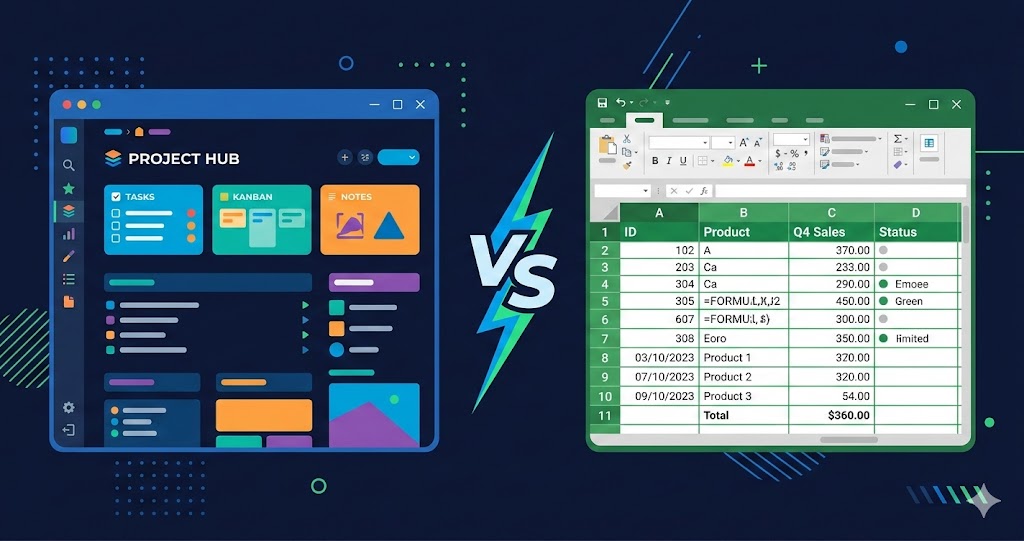
Two tools. Both free-ish. Both capable of tracking your money. So why does one feel like homework and the other feel… fine?
The Notion vs Excel debate for budgeting isn’t about which tool is better on paper — Excel wins that argument easily. It’s about which one you’ll actually open tomorrow morning, and the morning after that.
Here’s the honest breakdown.
What You’re Actually Comparing
Before the feature lists, understand what these tools are built for.
Excel is a calculation engine. It was designed for financial modeling, data analysis, and processing thousands of rows of numbers. Budgeting is technically one of its lightest tasks. The upside: it can do anything. The downside: it makes you figure out how to do it.
Notion is a workspace tool. It was designed for notes, tasks, and simple databases. Its “database” feature is what makes budgeting possible, but it wasn’t built for heavy financial analysis. The upside: it’s frictionless to use daily. The downside: it has real limits for complex math.
Neither was purpose-built for budgeting. But one of them will fit your life better.
Excel: The Case For and Against
Where Excel is genuinely better
Complex calculations. Loan amortization tables, compound interest projections, investment portfolio tracking, tax modeling — Excel handles all of this with built-in functions. If you’re running a small business or tracking investments seriously, Excel’s formula power is unmatched.
Large datasets. If you have thousands of transactions per year (running a side business, managing rental properties, freelancing with dozens of clients), Excel handles big data without slowing down. Notion databases start to feel clunky past a few hundred rows.
Offline access. A properly saved Excel file works with no internet connection. For people in areas with unreliable internet or who travel frequently, this matters.
Charts and pivot tables. Excel can turn your spending data into visual charts automatically. You can see spending trends over 12 months with a few clicks. Notion’s database views are functional but basic — you won’t get native charts without workarounds.
Where Excel falls apart
The blank page problem. You open a new workbook. You stare at it. Where do you start? What columns do you need? What formulas? Most people spend 45 minutes building something before they’ve logged a single expense. Then the formula breaks on week 3 and they give up.
Mobile is an afterthought. The Excel mobile app exists. It works. But opening a complex budget spreadsheet on your phone, finding the right cell, entering an amount without accidentally selecting the wrong row — it’s genuinely frustrating. For a habit that requires daily use, this friction kills consistency.
Version control is manual. “Budget-March-FINAL-v3.xlsx” is a real file name on real computers. When you have the spreadsheet on your laptop and your desktop and your backup drive, keeping them in sync requires discipline. One mistake and your data diverges.
It requires spreadsheet skill. INDEX/MATCH, SUMIF, data validation, conditional formatting — these aren’t beginner concepts. If you don’t already know Excel, you’re learning the tool and trying to budget simultaneously. Most people give up on the tool, not the budget.
Notion: The Case For and Against
Where Notion is genuinely better
Daily habit sustainability. Open Notion on your phone. Tap “New entry.” Fill in: what you bought, how much, which category. Done in 20 seconds. This is the core reason Notion works for budgeting — it makes the daily logging habit nearly frictionless.
Everything in one place. Your budget lives next to your tasks, notes, and planning pages. When your finance dashboard is already open because you’re checking your to-do list, you’re far more likely to log expenses. Context switching between apps is the silent budget killer.
Collaboration without complexity. Share a Notion page with your partner and you both see the same data in real time. No emailing spreadsheets, no conflicting versions, no “which file is current?” No Excel skill required from either person.
Templates that actually work. Duplicating a pre-built Notion budget template takes 30 seconds. You start with proper categories, sample data, and filtered views already configured. You don’t need to build anything — just start logging. See our guide to the best Notion budget templates for the top options.
Where Notion falls short
Formulas are limited. Notion’s formula property can handle basic math: sum, average, percentage, if/then conditions. It cannot handle anything like VLOOKUP, pivot tables, or complex multi-condition aggregations. For simple budgeting — total spending by category, percentage of income used — Notion’s formulas are sufficient. For anything more sophisticated, they’re not.
Charts require workarounds. Notion has no native chart feature built into databases. You can see spending grouped by category, but you can’t generate a line chart of monthly spending trends without exporting to another tool. If visual analytics matter to you, this is a real gap.
Requires internet. Notion is cloud-first. The desktop app has limited offline functionality. If your internet is unreliable, you might find yourself unable to log an expense when you need to.
Large databases slow down. A Notion database with 3,000+ entries starts to feel sluggish. For most personal budgets (roughly 50-100 transactions per month), you’ll never hit this limit. For high-volume tracking, it’s worth knowing.
Side-by-Side Comparison
| Feature | Excel | Notion |
|---|---|---|
| Daily expense logging (mobile) | Clunky | Fast |
| Complex formulas | Excellent | Limited |
| Charts and graphs | Excellent | Basic |
| Setup time (from scratch) | 1-2 hours | 5-10 minutes |
| Template quality | Variable | Good options available |
| Collaboration | Requires OneDrive/SharePoint | Built-in |
| Offline access | Yes | Limited |
| Learning curve | Steep | Gentle |
| Cost | $10-15/month (Microsoft 365) or one-time | Free personal tier |
| Best for | Complex finances, large datasets | Daily budgeting habit |
The Real Question: What Type of Person Are You?
Stop comparing features. Compare yourself to these profiles:
You should use Excel if:
- You already open Excel daily for work
- You’re tracking a business, rental income, or investment portfolio
- You need to model “what if” scenarios (loan payoff projections, savings targets)
- You have thousands of transactions per month
- You enjoy building systems from scratch
You should use Notion if:
- You want to build a daily logging habit without fighting the tool
- You already use Notion for notes or task management
- You have a partner you want to budget with
- You’ve tried Excel budgeting before and abandoned it
- You just need to see where your money goes — not build a financial model
One honest observation: most people who think they need Excel’s power actually don’t. The “power” they use is: sum a column and divide by income. That’s four keystrokes in both tools.
The Cost Reality
Excel: Microsoft 365 Personal costs $69.99/year ($5.83/month). You can use Excel Online free, but the web version is limited for complex files.
Notion: Free for personal use with unlimited pages and databases. There’s no budget size limit. The paid plan ($8-16/month) adds team features you won’t need for personal budgeting.
If you’re already paying for Microsoft 365 for other reasons, Excel costs you nothing extra. If you’re not, Notion is genuinely free.
What Happens When You Switch
The most common pattern: someone builds an elaborate Excel budget, uses it for 3 weeks, stops when it breaks or becomes inconvenient, and never reopens it.
Notion doesn’t have that collapse point. It’s not powerful enough to break in complex ways. The simplicity that frustrates power users is the same simplicity that keeps casual users consistent.
If you’ve failed at Excel budgeting before, that’s not a character flaw — it’s a tool mismatch. Try Notion for 30 days. If you’re still logging expenses after 30 days, you’ve found your system. See why most people fail at budgeting for the psychology behind why tool choice matters more than people think.
Starting With Notion (Practical Steps)
If you’re switching to Notion or starting fresh:
- Duplicate a template — don’t build from scratch. Pre-built budget templates save hours of setup.
- Set a daily reminder — pick a time (before bed works for most people) and stick to it for 2 weeks.
- Start with 5 categories max — Housing, Food, Transport, Entertainment, Other. You can always split later.
- Do a monthly review — 15 minutes on the first of each month to see totals and adjust.
That’s the full system. See how to track expenses in Notion for a complete setup guide.
Related Articles
- How to Track Your Expenses in Notion — Step-by-step Notion expense tracking setup
- 5 Best Notion Budget Templates in 2026 — If you choose Notion, here are the best templates
- Track Multiple Income Streams in Notion — Notion’s advantage for freelancers with complex income
- Are Notion Templates Worth Paying For? — When to invest in a template vs building from scratch
- 7 Budgeting Mistakes That Keep You Broke — Common mistakes that hurt both Excel and Notion users
- Why People Fail at Budgeting — The psychology behind tool abandonment
- Best Budget Spreadsheet Templates 2026 — If you’ve committed to a spreadsheet approach
Frequently Asked Questions
Is Notion or Excel better for budgeting?
Notion is better for most people’s daily budgeting habit because it’s frictionless on mobile and simple to use consistently. Excel is technically more powerful but that power goes unused for basic personal finance. The deciding factor isn’t features — it’s which tool you’ll actually log expenses in every day. If you’ve abandoned an Excel budget before, try Notion for 30 days. Most people who switch don’t go back.
Can Notion replace Excel for personal finance?
Notion can fully replace Excel for personal finance tracking: income logging, expense categorization, budget tracking, monthly reviews, and savings goal monitoring. Notion cannot replace Excel for advanced financial modeling, tax return preparation, investment analysis, loan amortization tables, or any calculation requiring pivot tables or complex multi-condition formulas. For the average person who wants to know where their money goes each month, Notion handles everything they need.
Does Notion have formulas like Excel?
Notion has a formula property that supports basic calculations — addition, subtraction, percentages, averages, if/then conditions, and date math. It doesn’t support Excel functions like VLOOKUP, INDEX/MATCH, SUMIF, or pivot tables. For personal budgeting math (total monthly spending, percentage of income used per category, savings rate), Notion’s formulas are sufficient. For anything more complex, you’d need Excel or a dedicated financial tool.
Can I import my Excel budget into Notion?
Yes. Export your Excel file as a CSV, then import it into Notion via “Import” → “CSV.” Notion maps columns to database properties automatically. The main limitation: Excel formulas don’t transfer. You’ll need to recreate calculations in Notion using formula properties or rollup features. The actual data (dates, amounts, categories) imports cleanly.
What’s the real cost difference between Excel and Notion for budgeting?
If you don’t have Microsoft 365, Excel Online (free) has enough features for basic budgeting but lacks some desktop Excel capabilities. The paid Microsoft 365 Personal subscription is $69.99/year. Notion’s free personal tier is fully functional for budgeting with no transaction limits or feature locks. For personal budgeting, Notion costs nothing vs. potentially $70/year for Excel — though most households already have Microsoft 365 for other reasons.
What if I want the power of Excel but the simplicity of Notion?
Google Sheets sits between the two. It’s free, has more formula support than Notion, works well on mobile, and has real-time collaboration. It lacks Notion’s database-style views but handles pivot tables and charts. If you want formula power without the complexity of local Excel files, Google Sheets is worth considering. Our best budget spreadsheet templates includes Google Sheets options.
Should beginners use Notion or Excel for their first budget?
Beginners should start with Notion. The learning curve is gentler, setup takes minutes with a template, and the mobile app makes daily logging easier. Once you’ve maintained a budgeting habit for 3-6 months, you’ll know whether you need Excel’s additional power — most people find they don’t.